End of Season Audit
At the end of a season or school year, you may want to verify that all of your items are physically in your equipment room. To complete this task, you will use the Batch Change function on the Helmet, Shoulder Pad, and Identified Equipment screens.
Make sure "Verified" and "Missing" are displayed on your Helmet and Shoulder Pad screens. Make sure "Status" and "Is In Use" are displayed on your Identified Equipment screen. (See Customize Search Grid)
Step 1: Verify Items
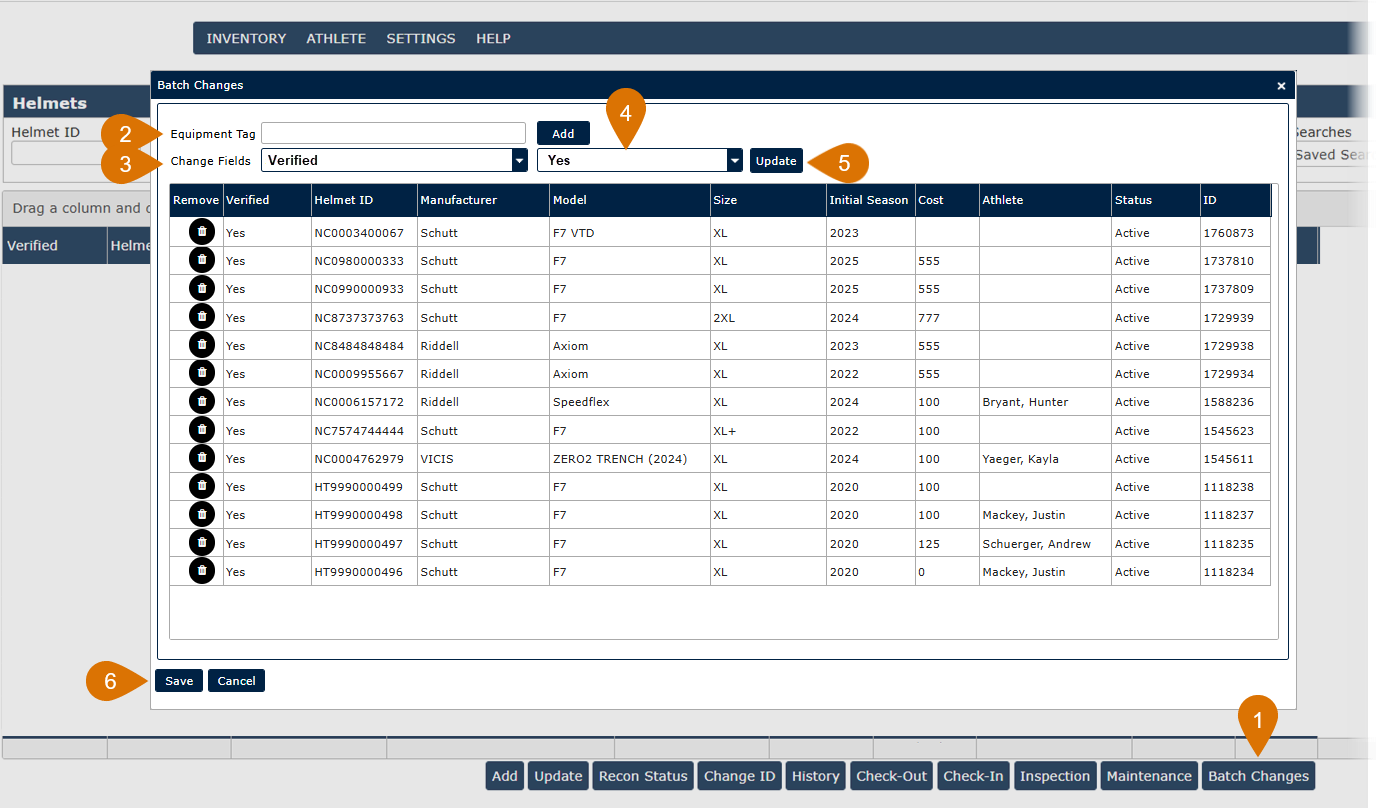
- On the inventory screen you are auditing, click the Batch Changes button.
- Begin scanning items onto the Batch Changes grid using the RFID or Barcode tag.
For Helmets and Shoulder Pads:
- Select Change Fields = Verified.
- Select Change Fields value = Yes.
- Click Update to see the Verified or Status value change on the Batch Change grid.
- Click Save to update your items.
For Identified Equipment:
- Select Change Fields = Status.
- Select Change Fields value = Verified.
- Click Update to see the Verified or Status value change on the Batch Change grid.
- Click Save to update your items.
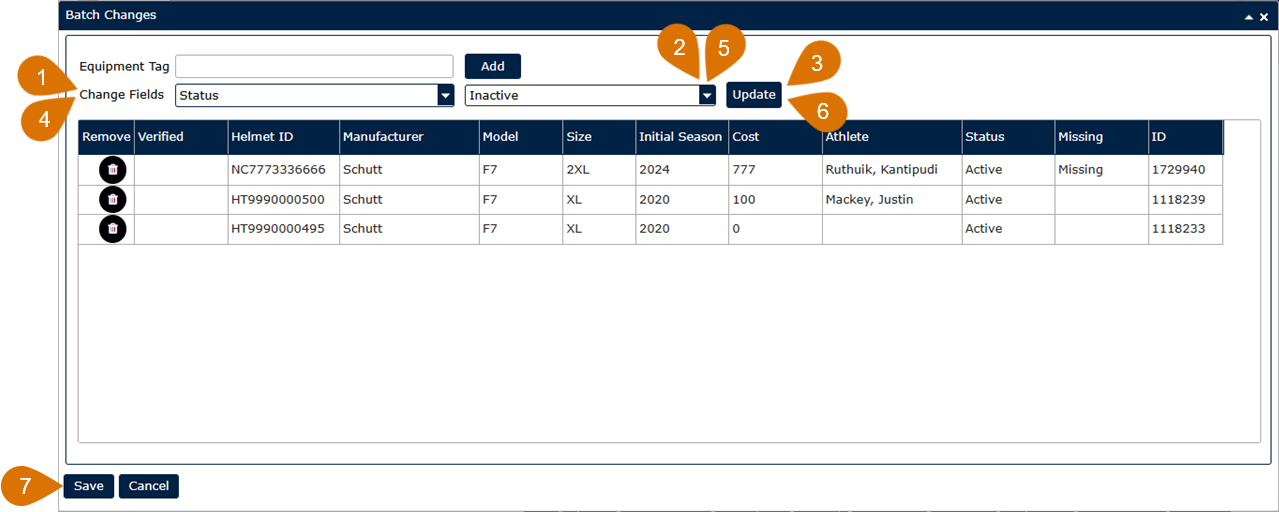
Step 2: Remove items from inventory and mark them "Missing"
Once items are verified, review your equipment results grid to see what equipment has not been audited. These items can be highlighted and added to the Batch Changes screen.
For Helmets and Shoulder Pads:
- Select Change Fields = Missing.
- Select Change Fields value = Yes.
- Click Update to see the values change on the Batch Change grid.
- Select Change Fields value = Status.
- Select Change Fields value = Inactive.
- Click Update to see the values change on the Batch Change grid.
- Click Save to update your items.
For Identified Equipment:
- Select Change Fields = Status.
- Select Change Fields value = Missing.
- Click Update to see the values change on the Batch Change grid.
- Select Change Fields = Is In Use.
- Select Change Fields value = No.
- Click Update to see the values change on the Batch Change grid.
- Click Save to update your items.
These steps will take the missing items out of your active inventory.